

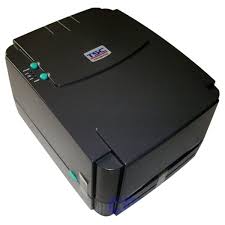
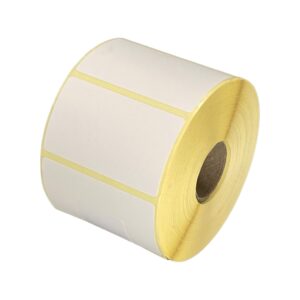

A printer that feeds several labels per print job, prints across a label boundary, or ejects blank labels has usually lost its media calibration. Calibration teaches the printer where each label starts and ends.
When to recalibrate
- After changing to a different label size, shape or material.
- After switching between gap labels, black-mark media and continuous stock.
- When the printer feeds one or more blank labels between prints.
Calibrate from the utility
- Open the printer utility supplied with your model (for TSC printers this is Diagnostic Tool / PrinterUtility).
- Connect to the printer over USB or by IP address.
- Select the correct sensor type:
- Gap — standard die-cut labels with a space between them.
- Black mark — media with a printed black registration bar on the reverse.
- Continuous — receipt-style stock with no gaps.
- Run Calibrate Sensor. The printer feeds a few labels while it measures.
Calibrate from the printer
Most models can self-calibrate without a PC. With the printer switched off, hold the feed button, switch the printer on, and release the button after the status LED has flashed the number of times specified for calibration in your model’s manual. Check the manual for your exact model — the flash count differs between ranges.
Still skipping labels?
- Confirm the media guides are snug against the label edges. Loose media drifts and confuses the sensor.
- Clean the sensor with a lint-free swab and isopropyl alcohol — dust and adhesive residue block it.
- Check the label size set in the printer driver matches the media physically loaded.
- Pre-printed or heavily patterned label backing can defeat a gap sensor. Switch to black-mark media if so.